Showing posts with label tutorial. Show all posts

Saturday, 26 October 2013

Install Linux On USB Key Using Virtual Machine | Tutorial

In this tuorial i will explain you how to Install whole Linux distro on USB key step by step using virtualbox alternatively you can use any virtualization software , i’ll using ubuntu as linux distro in this guide ..

Linux ISO : Download Ubuntu
requirements : 8 GB USB drive ( 16 recommended )
Virtualbox : download virtualbox
virtualbox extensions :

setup :
  •  format usb drive 
  • connect usb drive to vm when installing 
Steps :
  1. open virtualbox 
  2. create new virtual machine ‘
  3. choose OS type is Linux and give it a name 
  4. click on setting and click USB from left sidebar 
  5. attach your usb 
  6. now start your virtual machine and choose install Ubuntu 
  7. click on clean install and choose USB drive !important 
  8. wait until it finish installing 
  9. after installation test your Installation using mobalive USB 
  10. now your full featured Ubuntu desktop is installed on USB and ready to use 
  11. enjoy and don’t forget to like us

How To Install Vmware Tool In Backtrack 5 R3 Step By Step [ How To ]

STAGE 3
This is second part of  << backtrack virtual machine installation tutorial 
in this tutorial i will cover how to install vmware tools and additionally how to install
Reboot and login with default username and password

username : root
password : toor

Before installing vmware tools

ONLY KDE users ,  fix unable to create symlink problem :
root@bt:~# mkdir /etc/cups/ppd
Prepare Kernels  Source 
 root@bt:~#prepare-kernel-sources
Change Root password of backtrack 5 R3 installation 
root@bt:~#passwd root 
Enter New UNIX Password : 
Retype New UNIX Password : 
passwd : Password Updated Successfully


After Prepare kernel sources now , Install vmware tools
1 : Eject and Disconnect Backtrack if its still mounted
2 : click on vm and choose install vmware tools
3 : if  mount automatically then its okay else mount manually

 
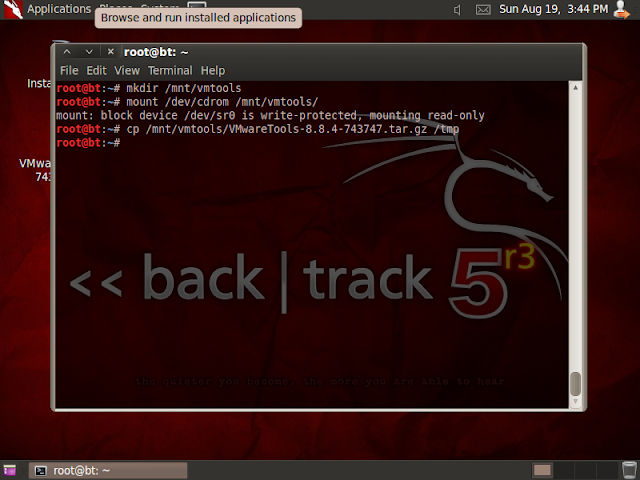
root@bt:~#mkdir /mnt/vmtools
root@bt:~#mount /dev/cdrom /mnt/vmtools/
mount : block device /dev/sr0 is write-protected, mounting read-only
root@bt:~#cp /mnt/vmtools/VMwareTools-8.8.4-743747tar.gz /tmp
root@bt:~#cd /tmp
root@bt:/tmp#tar zxpf VMwareTools-8.8.4-743747tar.gz
root@bt:/tmp#cd vmware-tools-distrib/
root@bt:/vmware-tools-distrib/#perl ./vmware-install.pl


it will ask many question if you are not sure just go with defaults and when it finish installing simply type
fix-splash


root@bt:fix-splash
root@bt:reboot


it will ask many question if you are not sure just go with defaults and when it finish installing simply type
fix-splash


root@bt:fix-splash root@bt:reboot

Installing Backtrack 5 R3 In Virtual Machine Step By Step [ How To ]

In this tutorial i will show you how to install Backtrack 5 R3 which is recently  released by offensive security team . if you’ve previously installed backtrack then you might be familiar with backtrack installations  . its easy and simple just follow given simple steps.


Stage 1 
Requirements
1 : Download backtrack ISO from here
2 :  Download VMware Workstation or  VMplayer
3 : Install any of above

Stage 2

Installation

1 : Create A new virtual machine
Installing backtrack 5 R3 in virtual machine step by step  [ how to ]
2 : choose installer ISO ( choose backtrack 5 ISO ) Installing backtrack 5 R3 in virtual machine step by step  [ how to ]
3 : choose Linux as your guest operating system type and Ubuntu as version
Installing backtrack 5 R3
4 : give a name and location of your backtrack VM
Installing backtrack 5 R3
5 : Specify virtual hard drive space ( 20 GB is good enough )
Installing backtrack 5 R3
then click finish from ready to create vm window
Installing backtrack 5 R3
hit enter to go boot screen then choose default boot text mode and hit enter
Installing backtrack 5 R3
HIT ENTER AT THIS POINT
Installing backtrack 5 R3
type startx to start GUI ( x server )
click on Install backtrack icon or open terminal type sh -c “ubiquity” 
Installing backtrack 5 R3
and continue like normal installation choose keyboard type and provide location info
if you are installing just backtrack then go normally and erase and use entire disk
or if you installing backtrack with other OS then specify partition accordingly ( in this tutorial m using virtual hard-drive )
Installing backtrack 5 R3
click on forward and click on install
Installing backtrack 5 R3
wait until it finish installing
it will take up-to 30 minutes depend on your system
Installing backtrack 5 R3
Stage 3
Network Configuration
virtualbox guest audition installation
vmware tools installation
backup and recovery
snapshots


All this covered in next tutorial >>>>


Subscribe to our Newsletter

Contact our Support

Email : ajai199@gmail.com